How STP Pay Event Lodgement Works in Xero

How STP Pay Event Lodgement Works in Xero
If you run payroll in Xero, the basic rule is simple: post the pay run, send the STP pay event, then check the ATO status. If you need to fix year-to-date figures and no payment is being made, I use an update event instead.
In plain terms, this process comes down to four steps: check setup, review the draft pay run, lodge the STP file on or before payday, and fix errors using the next pay run or an update event. Under STP Phase 2, Xero must report more detail, including pay categories, allowances, leave types, TFNs, and employee address data, so small setup errors can lead to a failed submission.
Here’s the short version:
- Pay event = used after a pay run where staff are paid
- Update event = used when I need to fix YTD data and no payment is being made
- Lodge by payday = STP reporting is due on or before employees are paid
- Check status in Xero = look for Pending, Accepted, or Failed
- Fix errors in Xero = then resend the event if it fails
- Year-to-date reporting matters = later reports update the ATO record, not just the current pay
A simple way to think about it: if money is going out, I use a pay event; if I’m only fixing data, I use an update event. That one rule covers most cases.
| Item | What I do |
|---|---|
| Before lodging | Check ABN, branch number, TFN, tax scale, address, pay item mapping |
| After drafting payroll | Review gross pay, PAYG, super, leave, allowances, reimbursements |
| After posting | Submit the STP pay event to the ATO |
| After submitting | Check whether the status is Accepted |
| If there’s an error | Correct it in the next pay run or send an update event |
Done properly, each lodgement keeps Xero and the ATO aligned on YTD payroll figures, which also makes year-end finalisation much less messy.
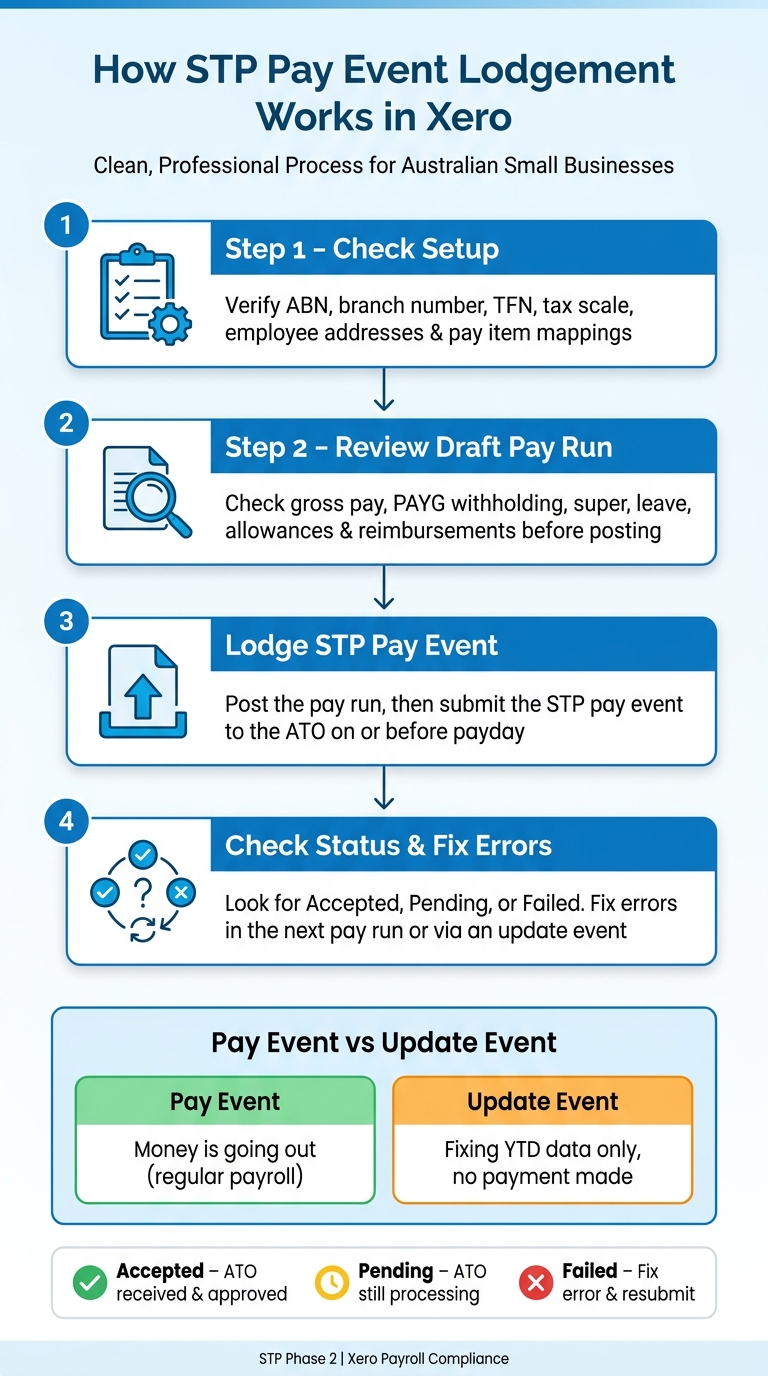
How STP Pay Event Lodgement Works in Xero: Step-by-Step
Prepare the pay run before you lodge
Check the pay run before you post it. Once you’ve lodged, fixes can be more of a hassle.
Check your Xero STP setup and employee details

Start in your Xero organisation settings. Make sure your ABN is correct and, if it applies to your business, your branch number is entered properly.
Then go through each employee record. Every employee should have a valid Tax File Number (TFN) and the right tax scale. Under STP Phase 2, employee residential addresses are also reported, so it’s worth checking that addresses are current and complete. If someone is leaving, add their termination date and final pay details before you make the final lodgement.
It’s also smart to give your pay items a quick once-over. STP Phase 2 depends on the right income types and pay item mappings, so confirm that wages, allowances, leave and superannuation are all set up correctly in Xero. For allowances, use the right allowance category rather than a generic label.
Once that setup is sorted, open the draft pay run and check each figure line by line.
Review pay run totals before posting
Open the draft pay run and review the totals before posting. Check that gross pay, PAYG withholding, superannuation, leave, and any allowances or reimbursements match what you expect for that pay period.
| Component | What to look for |
|---|---|
| Gross pay | Match contracted hours or salary for the period |
| PAYG withholding | Calculated correctly for each employee |
| Superannuation | Calculated correctly for the pay period |
| Leave balances | Accruals and leave taken are recorded accurately |
| Allowances / reimbursements | Categorised correctly |
If something looks off, fix it while the pay run is still in draft.
When the draft matches your records, post the pay run and send the STP file.
sbb-itb-98a37a2
Finalise the pay run and lodge the pay event in Xero
Once the draft pay run is correct, post it to create the STP pay event.
Post the pay run to finalise payroll
When the draft balances are right, post the pay run to lock in the payroll data. This moves the pay run out of draft and finalises the payroll record in Xero.
Authorise and submit the STP file to the ATO
After posting, submit the STP pay event to the ATO. Xero bundles the required STP Phase 2 data into the pay event, so the file is ready to send once the pay run has been posted.
Check the filing status and confirm lodgement
After submission, check the ATO result in Xero. Look at the filing status before you treat lodgement as complete.
| Status | What it means |
|---|---|
| Pending | ATO has not finished processing |
| Accepted | The ATO has received and accepted the pay event |
| Failed | An error must be fixed in Xero |
If the status is Failed, fix the error in Xero and resubmit the pay event. For complex setups, consider using specialist hospitality bookkeeping to ensure payroll compliance.
Fix simple errors and know when to use an update event
If a lodged pay event is wrong, fix the YTD figures in the next pay run or with an update event. STP reporting works on year-to-date (YTD) figures, so a later fix updates the ATO record and keeps the ATO's YTD record in line with Xero.
Correct mistakes in the next pay run where possible
If an earnings amount is wrong, an allowance is missing, or an employee was left out of an earlier run, add an adjusting line in the next pay run. Make sure you use the correct STP Phase 2 classification.
Use an update event only when no payment will be made.
Use an update event when no payment is being made
If you spot an error after lodging and no payment is due, lodge an update event to fix YTD figures or employee details without creating a new pay record.
The table below shows when each option applies:
| Pay Event | Update Event | |
|---|---|---|
| Common scenario | Regular weekly or fortnightly payroll | Fixing a mistake found after a pay run was already filed |
| How to action | Add an adjusting line in the next scheduled pay run | Lodge an update event |
If money is moving, use a pay event. If only the data needs fixing, use an update event.
Stay compliant through the year and wrap up the process
Regular lodgement, year-end finalisation and where to get help
Lodge each pay event on or before payday. Done right, each pay cycle gives you a simple checkpoint to spot mistakes before they stick. That routine also keeps your year-to-date figures clean, which makes life much easier when finalisation time rolls around.
At year end, STP finalisation tells the ATO the employee's payroll data is complete and helps pre-fill tax returns. If your year-to-date figures are clean, finalisation is usually faster and more accurate.
If you need support with Xero payroll setup, STP Phase 2 compliance, catch-up bookkeeping or annual STP finalisation, The Priory Books and Tax supports small businesses with exactly that.
If a lodged pay event fails, go back to the draft pay run, fix the figures, and resubmit.
FAQs
Do I need to lodge STP before or after payday?
Under Australian tax rules, you must lodge your Single Touch Payroll (STP) report on or before payday. That way, the ATO gets your payroll data at the same time your employees are paid.
If you need a hand staying compliant, The Priory Books and Tax provides payroll and Xero-based finance support for businesses across Australia.
When should I use an update event instead of a pay event?
Use a pay event when you’re reporting payments made to employees as part of a normal pay run.
Use an update event when you need to fix or adjust year-to-date figures for one or more employees without making an actual payment. For example, you might use one to correct a mistake from an earlier pay run or to update data outside the regular payroll cycle.
What should I check if my STP lodgement fails?
If your Single Touch Payroll lodgement fails in Xero, start with the basics.
Check that each employee’s full name, date of birth, and residential address are correct and match ATO requirements. Even a small mismatch can cause the lodgement to fail.
Then review your payroll details, including:
- tax withholdings
- superannuation contributions
Make sure everything is accurate before you resubmit.
If the errors keep coming back, The Priory Books and Tax can help identify the cause and sort it out.