How Xero Tracks GST for BAS Planning
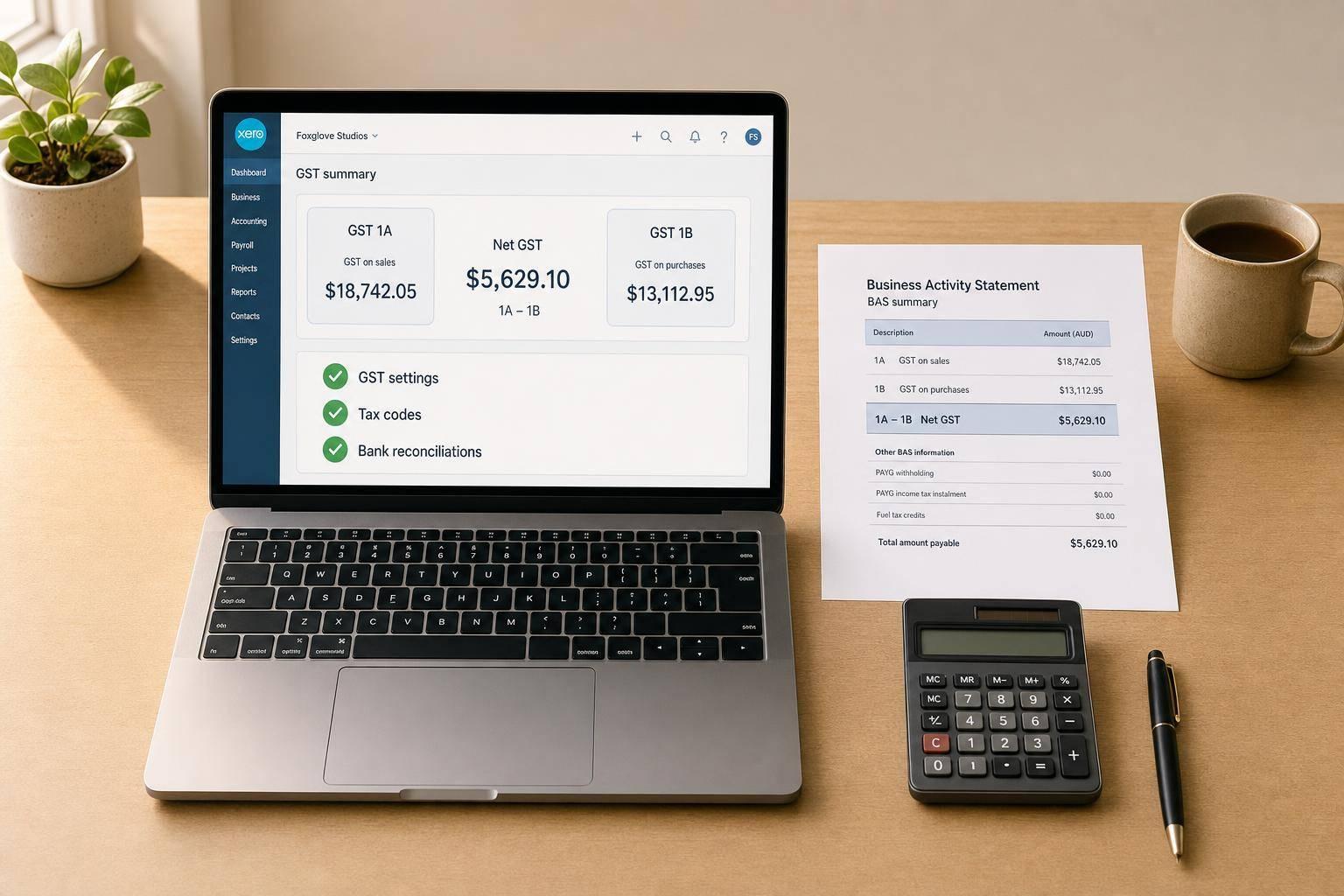
How Xero Tracks GST for BAS Planning
If I keep Xero coded and reconciled through the quarter, I can usually see my BAS GST position before lodgement. That means I’m not waiting until the last week to find out whether I owe the ATO money or may get a refund.
Here’s the short version:
- I use sales, bills, bank feed entries, and tax codes to shape BAS figures in Xero.
- I check G1, 1A, 1B, G10, and G11 to make sure sales, GST, and purchase amounts sit in the right labels.
- I confirm the BAS period and whether Xero is set to cash or accrual.
- I compare the Activity Statement, GST Reconciliation Report, and GST Control Account before lodgement.
- I fix wrong tax codes, duplicate entries, draft bills, draft invoices, and unreconciled items before I rely on the numbers.
- I use bank rules and Hubdoc to keep records up to date during the quarter.
A simple check matters here: net GST = 1A minus 1B. If 1A is higher, I’ll likely need to set money aside. If 1B is higher, I may be due money back. For many businesses, that one figure is the main BAS planning number.
| BAS label | What I look for in Xero |
|---|---|
| G1 | Total sales for the period |
| 1A | GST on sales |
| 1B | GST on purchases |
| G10 | Capital purchases, such as fixed assets |
| G11 | Other business purchases and expenses |
I also keep in mind one tax invoice rule: for purchases over $82.50 including GST, I need a valid tax invoice to claim the GST credit.
So when I plan BAS in Xero, I’m not just running a report. I’m checking that the setup, coding, reconciliation, and source records all line up first.
Xero – How to Use the GST Audit Report to Catch Coding Mistakes

sbb-itb-98a37a2
What Xero captures for GST and BAS
Each time you raise a sales invoice, enter a supplier bill, or record a spend money transaction in Xero, the tax code on each line decides where the GST goes on your BAS. But that only happens as expected when transactions are coded properly and your records are kept current. Unreconciled bank items don't move into BAS totals until they're matched, so it's smart to keep things up to date well before the due date. If the transaction data or tax codes are off, the BAS figures will be off too.
GST collected on sales and GST paid on expenses
The tax code on each transaction line tells Xero where the GST should land on your BAS. A sale coded as GST on Income flows to 1A (GST on Sales). A purchase coded as GST on Expenses flows to 1B (GST on Purchases). Get the code wrong, and the amount ends up in the wrong place.
That's why your GST settings, account coding, and default tax codes need to be set up properly from day one.
| BAS Label | Description | Xero Transaction Source |
|---|---|---|
| G1 | Total Sales | Sales invoices, Receive Money, cash receipts |
| 1A | GST on Sales | GST component of all taxable sales |
| 1B | GST on Purchases | GST component of all taxable purchases/expenses |
| G10 | Capital Purchases | Bills/Spend Money coded to fixed asset accounts |
| G11 | Non-capital Purchases | Bills/Spend Money for operating expenses |
Check GST settings, chart of accounts and tax codes first
Before you use a BAS report in Xero, check that your GST calculation period, whether monthly or quarterly, and your accounting method, cash or accrual, match your ATO registration. Also make sure your default account codes are mapped the right way. For example, coding a purchase to a fixed asset account sends it to G10, while coding it to an expense account sends it to G11.
This part matters more than many people think. Clean account coding helps keep GST figures in line, which makes it much easier to estimate your BAS before lodgement. If you need professional help, consider consulting registered tax agents to ensure your returns are accurate.
With the BAS codes and settings checked, the next step is to review the report output and your net GST position.
How to review BAS and GST reports in Xero
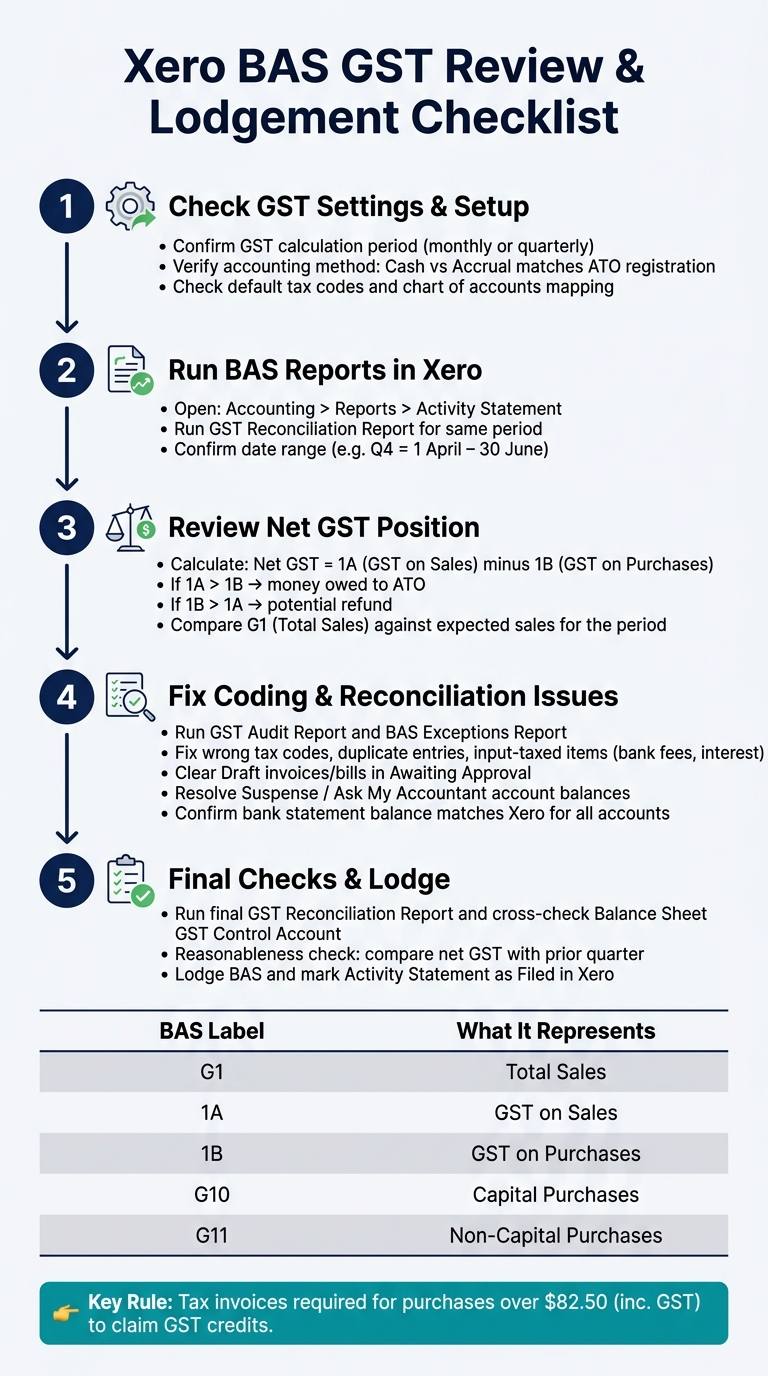
Xero BAS GST Review Process: Step-by-Step Checklist
Open Accounting > Reports > Activity Statement, then run the GST Reconciliation report for the same period to check for variances against posted transactions. Xero builds a draft Activity Statement for the period you choose. Before you lodge, check the period, the reporting basis, and the net GST position.
Confirm the BAS period and reporting basis
Before you look at the numbers, check two things: the date range and the reporting basis. The period needs to match your ATO registration. For example, the Q4 quarterly period should show 1 April to 30 June. Then check whether Xero is set to cash or accrual under Accounting > Accounting settings > Financial settings.
This step matters more than people think. Cash basis reports GST when money changes hands. Accrual reports GST when invoices are dated. If the basis in Xero doesn’t match your ATO registration, the draft figures will be off and lodgement may fail.
Once that setting is correct, you can read the net GST figure as a simple cashflow check.
Review the net GST position for cashflow planning
Now look at the net GST position - 1A minus 1B. If 1A is higher, you owe GST. If 1B is higher, you may be due a refund.
It also helps to do a quick sense check. Compare the current net position with earlier BAS periods. If the figure looks out of line, review the transaction detail before lodging. You should also confirm that G1 (Total Sales) lines up with the sales you’d expect for that period. If G1 looks too low, that can point to invoices entered in the wrong period or transactions that are still unreconciled. In many cases, that points to the wrong tax treatment rather than a problem with the report itself.
Check coding and reconcile transactions before lodgement
Once the net GST position passes the sniff test, the next job is checking the coding behind it. That helps confirm the BAS estimate before you put cash aside for the amount due. After that, review the transactions that make up those totals.
Find uncoded items, wrong tax rates and duplicate entries
Use your reports to track any variance back to the source transaction.
Run the GST Audit Report to see the transactions behind each BAS line. Pair it with the BAS Exceptions Report, which flags transactions in the period that don't have a GST code assigned.
Then run the Account Transactions report for the BAS period. Look for wrong tax rates, GST-free codes, and duplicate entries. The Bank Reconciliation Report can help here too. It’s handy for spotting duplicate manual entries when the bank line has already been matched to the original invoice or bill.
A few problem areas are worth a close look:
- insurance splits
- bank fees and interest, which should be treated as input-taxed
- assets over $1,000, which should be coded to G10
Also check the Draft and Awaiting Approval tabs for both invoices and bills. Anything left in Draft won’t flow into BAS calculations, which can understate your figures.
Do the same with the Trial Balance. Filter for any "Suspense" or "Ask My Accountant" accounts. If amounts are sitting there, they won’t flow into the BAS until they’re allocated.
Use bank reconciliation to support accurate GST totals
Clear unmatched items so the GST amount you set aside for BAS lines up with the actual liability. Before you run the BAS, confirm the bank statement balance in Xero matches the bank balance for every account. Match each bank line, then fix any mismatches before lodgement.
That said, a matched transaction isn’t always a correct one. It might be matched to the wrong invoice, coded to the wrong account, or given the wrong GST treatment. That’s why it helps to run the GST Audit Report alongside the reconciliation.
Once the reconciliation is clean, bank rules and receipt capture make it much easier to keep the next BAS period up to date.
Keep records current with bank rules, receipt capture, and liability checks
Once the bank feed is reconciled, keep these records up to date so your BAS estimate stays on track. The biggest day-to-day wins between BAS periods usually come from three habits: bank rules, receipt capture, and regular GST balance checks.
Set up bank rules for recurring GST coding
Bank rules automatically code repeat transactions to the right account and GST rate each time they hit the feed. They work well for recurring costs with steady descriptions, like bank fees, subscriptions, rent, and utilities.
To set one up, find the transaction in the bank feed, click Options, and create the bank rule. Use Contains instead of Equals. That way, the rule can still match if a date, invoice number, or reference gets added later. In the allocation area, choose the right expense account and the exact tax rate, such as GST on Expenses or GST Free.
One thing to watch: don’t create bank rules for suppliers whose invoices already come through Hubdoc. If you do, you can end up with duplicate entries in Xero.
Use receipt capture for invoices that don’t come through the bank feed.
Capture receipts as you go to support GST claims
For purchases over $82.50 including GST, you need a valid tax invoice before claiming the GST credit. That’s where Hubdoc helps. It’s included in Xero Growing and Established plans, and it can use OCR to pull out the supplier, amount, date, and GST from a photo or forwarded email, then send it into Xero as a draft bill.
A simple habit helps here: set up email filters to forward regular supplier invoices straight to your Hubdoc address.
Check GST payable or refundable position before the BAS due date
Run the GST Reconciliation Report during the quarter, then compare it with the Balance Sheet GST Control Account. This report compares calculated GST against the general ledger, so you can check whether the figures line up before the due date. Then cross-check the Balance Sheet GST Control Account to see the net amount owed or refundable.
It also helps to review labels 1A and 1B through the quarter. That gives you an early read on whether you’re likely to owe the ATO or receive a refund before the BAS is due.
Final checks before BAS planning and lodgement
Once coding, reconciliations and liability checks are done, do one last sweep for exceptions. This is the final sanity check before you set money aside or lodge the BAS.
Run the GST Audit Report and look for things like capital purchases posted to the wrong BAS label or private expenses where GST credits have been claimed by mistake. Also clear any remaining suspense balances and make sure there are no draft invoices or bills sitting in Awaiting Approval.
Then do a reasonableness check on the net GST result. Compare it with the prior quarter. If the number has moved a lot, dig into the cause before you go any further.
When the totals reconcile, lodge the BAS, then file the period in Xero. After lodgement, mark the Activity Statement as Filed. That locks the lodged figures.
FAQs
Why is my BAS estimate in Xero different from what I expected?
Your BAS estimate in Xero can look off when records are missing or coded the wrong way. And in most cases, the cause is pretty simple: a transaction has been treated incorrectly somewhere in the file.
Common reasons include:
- the wrong GST rate was used
- private expenses were claimed as business purchases
- manual journals were posted to the GST account
You might also see differences when transactions were reconciled to the wrong period, payments were entered twice, or Receive Money / Spend Money was used instead of matching the payment to invoices or bills.
Another issue is your Xero GST setup. If those settings don’t line up with your ATO registration, your BAS estimate can drift from what you expect.
How do I know if Xero is set to cash or accrual for BAS?
In Xero, go to Accounting, then Accounting settings, then Financial settings, and select Go to new BAS.
On the Business Activity Statement Settings screen, you’ll see whether your GST accounting method is set to cash or accrual.
Make sure this matches your Australian Taxation Office registration. If it doesn’t, your draft BAS figures can be off.
What should I check before relying on the GST figures in Xero?
Before you rely on the GST figures in Xero, make sure the data is clean and the settings line up with your ATO registration. Reconcile every bank account and credit card for the period, then check that your GST method and BAS reporting period match what the ATO has on file.
Next, run the GST Reconciliation and GST Audit reports. These reports help you spot gaps caused by manual journals, duplicate entries, or the wrong tax rates. It’s also worth cross-checking payroll against your STP reports so the W1 and W2 figures match.