Xero Opening Bank Balances: Guide
Xero Opening Bank Balances: Guide
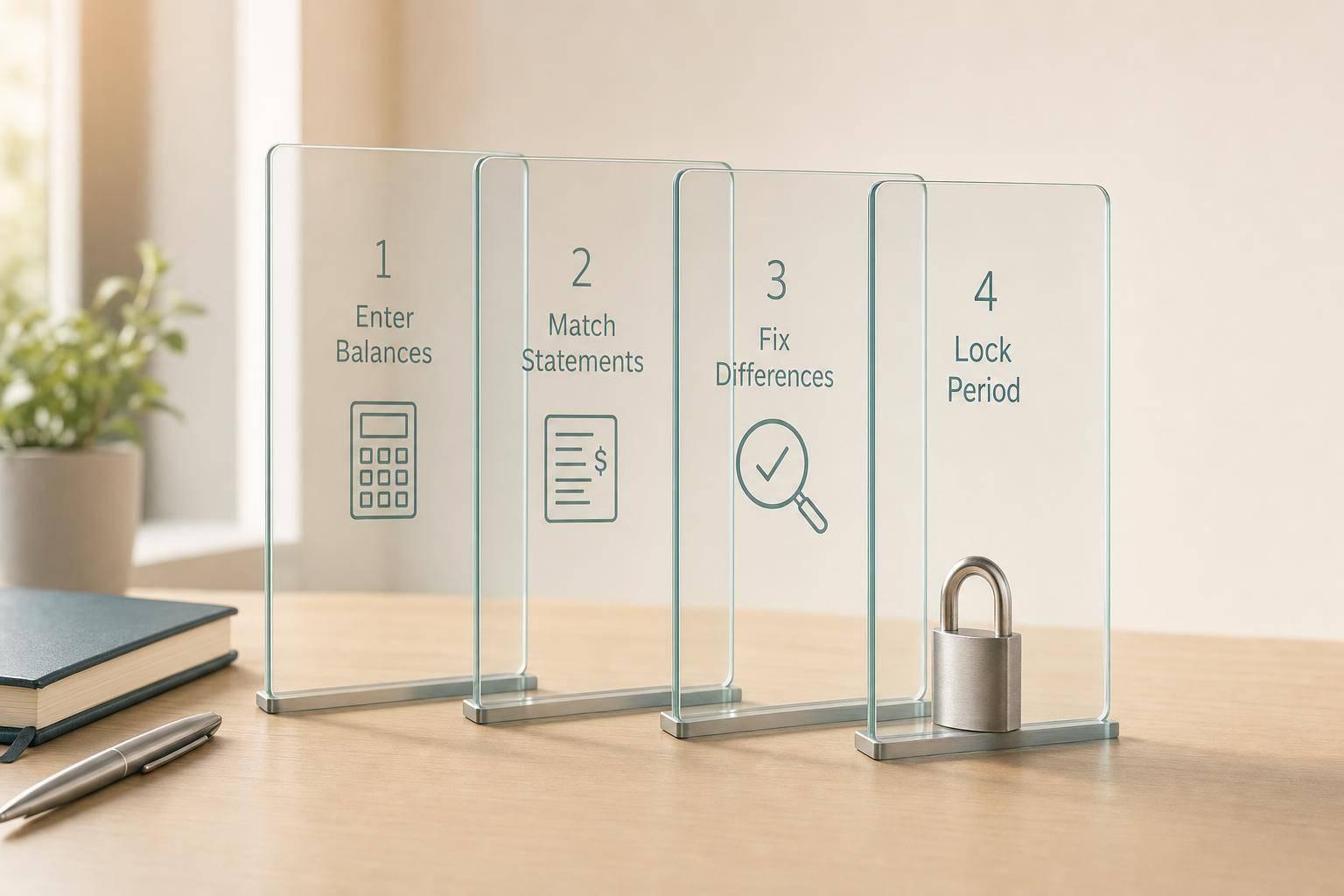
If your opening bank balance is wrong in Xero, every bank rec after that starts wrong too. I’d treat the setup date, the closing balance from the day before, and the debit/credit entry as the 3 things to get right first.
Here’s the short version:
- I use the closing bank balance from the day before conversion
- I enter it in Conversion Balances
- I make sure total debits = total credits
- I compare Xero to the bank statement and old system
- I lock the period once everything matches
A simple example: if the bank account should start at $47,000 on 1 July, but I leave it at $0, Xero stays $47,000 out until I fix the opening figure. Even if new receipts and payments are entered the right way, that gap stays there.
A few points matter most:
- Conversion date: best set at 1 July or the start of a BAS quarter
- Source figures: use the trial balance, bank statements, aged receivables, and aged payables
- Account types: credit cards and loans often go in as credits, and credit cards often show as negative
- Fixes: if there’s an opening difference, I fix it in Conversion Balances, not with a manual journal
- Missing feed dates: I import the gap with CSV or QIF
| Step | What I check |
|---|---|
| Pick the date | Start of year or BAS quarter |
| Gather figures | Day-before closing balances and reports |
| Set up accounts | Bank, credit card, and loan accounts mapped the right way |
| Enter balances | Debits and credits entered in the right columns |
| Review | Xero matches bank statements exactly |
| Lock | No edits to the pre-conversion period |
So the main job is simple: start Xero from the right closing balances, check them against the bank, and lock the file once they match.
How to Set Up Xero Opening Bank Balances: 6-Step Process
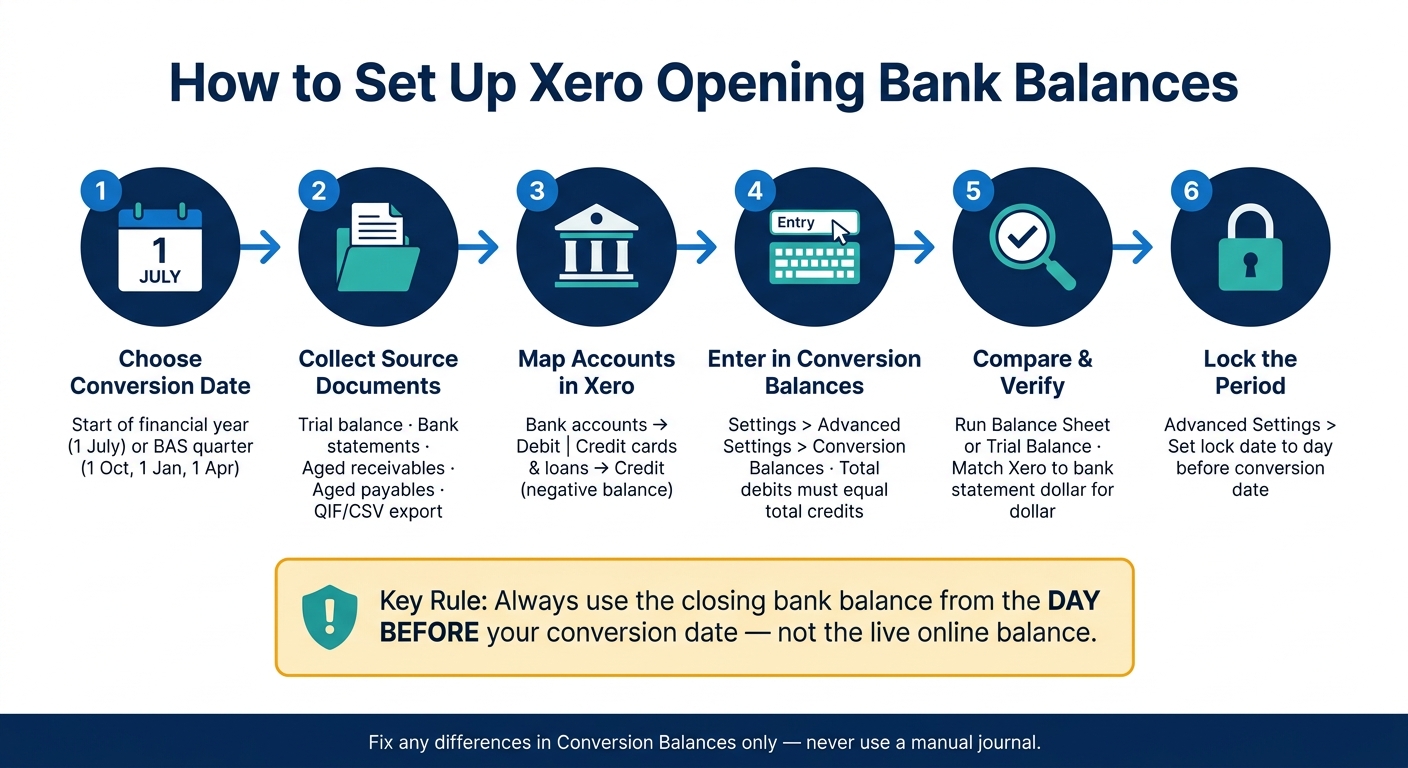
1. Choose the right timing and gather the numbers
Pick a conversion date that works for BAS and reporting
The conversion date is the first day you start recording transactions in Xero. Anything before that stays in your old system. For the cleanest reporting and easier reconciliation, line it up with 1 July.
If that’s not an option, use the start of a BAS quarter: 1 October, 1 January or 1 April. That keeps your GST data in one system for each lodgement, making it easier for registered tax agents to manage your year-end reporting. Mid-month or mid-quarter start dates tend to cause headaches because they split GST reporting across two systems and add extra reconciliation work.
Once you’ve locked in the date, the next job is simple: pull the balances and reports you’ll need to load Xero the right way.
Gather the trial balance and bank statements
Before you open Xero conversion balances, get these records together:
| Document | What it's for |
|---|---|
| Trial balance | Snapshot of all account balances at conversion |
| Bank statements | Confirms the exact closing balance for each account |
| Aged receivables | Lists unpaid invoices to match your AR balance |
| Aged payables | Lists unpaid bills to match your AP balance |
| QIF/CSV export | Covers any gap before bank feeds begin |
Use the bank’s closing balance from the day before conversion, not the live online balance. So if your Xero start date is 1 July, use the 30 June closing balance.
That one detail matters more than people think. The live balance can shift with pending transactions, while the closing balance gives you a fixed point to work from.
Decide how much history to bring across
For the simplest cutover, bring in opening balances only. If you need more detail in Xero, add 12 months of comparative figures plus outstanding invoices and bills. How much history you import can affect how fast you can match bank balances after cutover.
If your bank feeds don’t start straight away, import the missing transactions with CSV or QIF so the Xero balance matches the bank balance.
Next, map each bank account to the right Xero code before entering the conversion balances.
sbb-itb-98a37a2
How to enter conversion balances (opening balances) in Xero

2. Set up bank accounts and link them to the chart of accounts
With your figures ready, the next job is to line up each account in Xero before you load any balances.
Create or review each bank, credit card and loan account
Check that every account already exists in Xero. That includes trading accounts, online saver accounts, business credit cards, loan accounts, plus merchant and clearing accounts.
Credit cards need a negative opening balance. In Xero, they’re set up as bank accounts but coded as liabilities, which is why they show as a negative balance on the conversion screen.
Once each account is in place, you can match it to the right chart of accounts account in the next step.
Match each account to the correct chart of accounts account
When you add a bank account in Xero through Accounting > Bank accounts > Add bank account, assign it to the matching account in your chart of accounts.
Here’s the simple rule:
- Transaction and savings accounts should match to bank accounts
- Credit cards should match to liability accounts
Map each old account to its Xero equivalent before loading balances.
Clean up the chart of accounts before loading balances
Finalise the chart of accounts before you enter conversion balances. If you change the structure later, the balances won’t move across by themselves, so you’ll have to enter them again manually.
This is also a good time to tidy things up. Older systems often have duplicate accounts, old accounts no one uses anymore, or accounts that can be merged. Clean those up before any figures go in.
With the chart of accounts locked in, you can move on to entering the opening balances.
3. Enter the opening bank balances in Xero
With your accounts mapped, the next job is to enter the opening figures in Xero.
Open the Conversion Balances screen
Go to Settings > Advanced Settings > Conversion Balances to open the entry screen. This is where you load your opening balances once the chart of accounts is set up. You’ll see every account in your chart of accounts here, including bank accounts, credit cards, and loans.
Enter debit and credit balances correctly
Enter positive bank balances in the debit column. Enter overdrawn bank accounts, credit cards, and loans in the credit column.
| Account Type | Balance Status | Xero Column |
|---|---|---|
| Bank account | Positive balance | Debit |
| Bank account | Overdrawn | Credit |
| Credit card | Outstanding balance | Credit |
| Business loan | Outstanding balance | Credit |
Use the closing balance from the day before conversion, not the live balance shown in online banking.
Each line should match your opening trial balance.
Check that total debits equal total credits
Xero won’t save the balances until total debits equal total credits. If the numbers don’t balance, go back through the lines against your bank statements and trial balance. Then check for cut-off errors, missed cheques, or duplicate imports.
Once the totals balance, you can move to the review step.
4. Review the setup, fix differences and lock the period
Compare Xero to the old system and bank statements
Before you start live reconciliations, make sure the opening balances are right. After you save the conversion balances, run a Balance Sheet or Trial Balance for the day before conversion and compare it with your previous system.
Then do the Bank Balance Test. For each bank account, check that the balance in Xero matches the closing balance on the bank statement exactly. No rounding off. No “close enough”. It needs to line up dollar for dollar.
Fix errors without creating more reconciliation problems
If you find a difference, fix the opening figures in Conversion Balances only. Don’t post a manual adjustment. That can leave a permanent imbalance in the conversion journal.
Here’s where issues usually come from:
| Error Type | Recommended Fix |
|---|---|
| Wrong opening figure | Update the figure directly in the Conversion Balances screen |
| Duplicate transaction | Delete the duplicate statement line in Xero |
| Missing statement line | Import the missing date range using a CSV or QIF file |
| A pre-conversion transaction recorded again as a new one | Remove it and include it in the conversion balance total instead |
This part matters more than it might seem. A small fix in the wrong place can turn one opening balance issue into a stack of reconciliation problems later.
Set a lock date once the review passes
Once the figures match, stop any further changes to that opening period. Go to Advanced Settings and lock the period ending on the day before your conversion date.
With that lock in place, the file is ready for normal reconciliation.
Conclusion: A clean opening balance makes future reconciliation easier
Once your balances match and the period is locked, Xero is set for day-to-day reconciliation. A clean opening balance gives you a solid starting point for every bank match after that. It also helps keep BAS reporting, bank reconciliation, and cash flow visibility in line from day one.
A small mismatch at the start can turn into the kind of problem that keeps popping up month after month. That’s why it pays to check every balance before you lock the period.
The Priory Books and Tax offers Xero setup and conversion support for small businesses across Australia.
FAQs
What if my bank feed starts late?
If your bank feed starts later than expected, first check the feed start date in Xero. Any transactions that fall between your chosen start date and the date the feed begins won’t come through automatically. You’ll need to import those manually so the bank balance in Xero lines up with your actual bank balance.
Download the missing transactions from your bank for that exact date range, then import them into Xero.
It’s also worth checking that your conversion balance and opening date match the bank’s closing balance from the day before. If those dates or figures are off, your balances can drift straight away.
Should I import full history or opening balances only?
It comes down to what your business needs.
Import full history if you want detailed transaction records, trend analysis, or past reporting in Xero. Just know it usually takes more work.
For most small businesses, opening balances only does the job. It gives you a clean start from the conversion date, while your old system stays in place as an archive for earlier records.
When should I lock the conversion period?
Lock the conversion period once the opening balance is correct, the bank feed is connected, and any missing transactions have been imported.
As a best practice, set the conversion date at the start of a financial year, such as 1 July, or at the start of a BAS quarter. Then lock the period only after the bank balance in Xero matches the actual bank balance, and all transactions have been imported and reconciled.