STP Phase 2 For Termination Pay
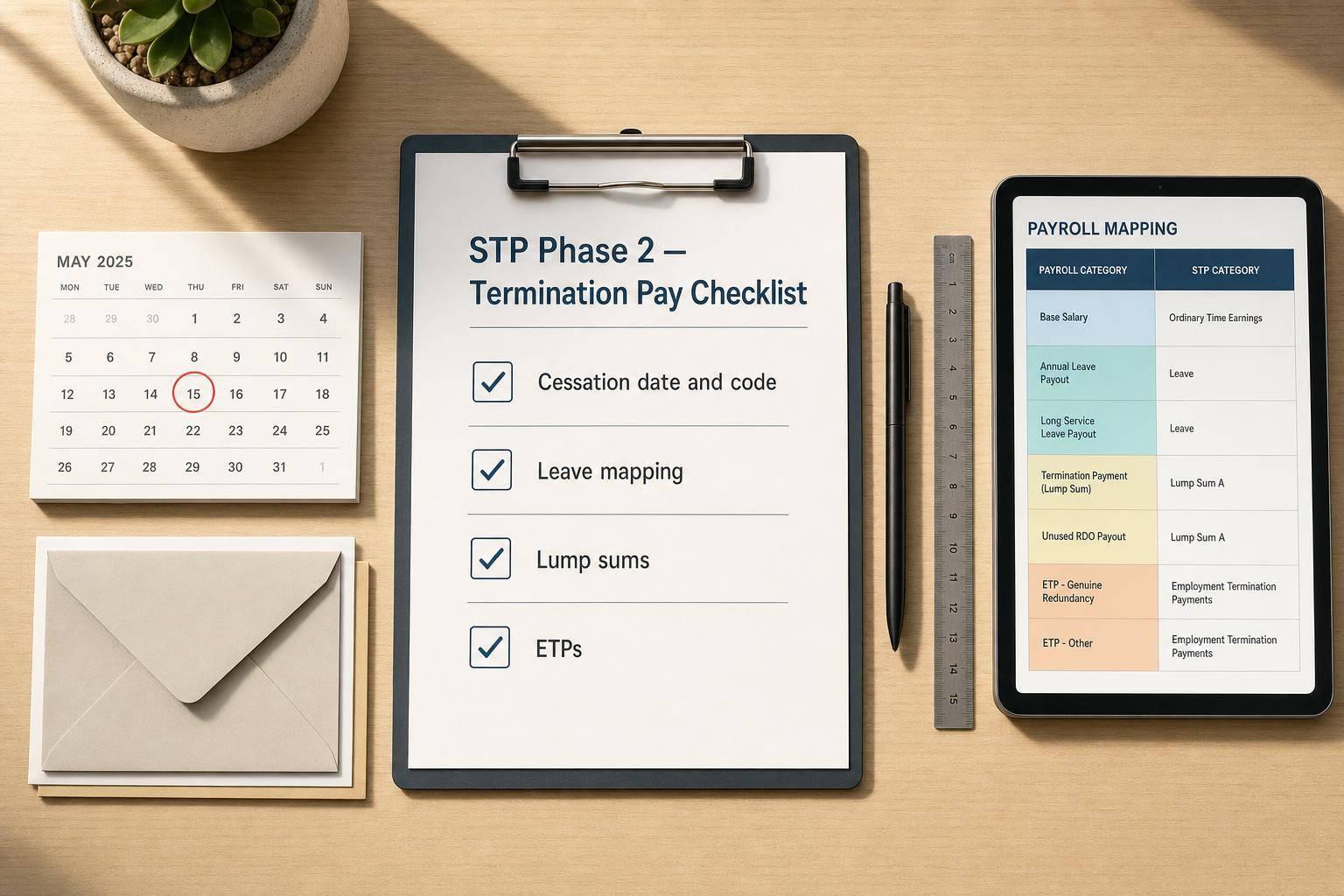
STP Phase 2 For Termination Pay
If you get termination pay wrong under STP Phase 2, the employee’s tax, income statement, and Services Australia data can all be wrong. I’d keep it simple: record the cessation date, choose the right cessation code from the 7 ATO options, and split the final pay into the correct labels instead of using one gross figure.
Here’s the short version:
- Normal wages up to the last day go to Gross
- Unused leave does not always go to the same label
- Redundancy and invalidity change how leave is reported
- ETPs must be reported per payment, not year-to-date
- Finalisation for most employees for 2025–26 is due by 14 July 2026
- If you make a mistake, I’d fix it with an update event as soon as possible
What I’d check before lodging:
- Cessation date
- Cessation reason code
- Employment basis
- Tax treatment code
- Xero pay item mapping
- YTD figures
- Separate ETP entries
A few rules matter more than the rest. For example, unused leave on a normal resignation can go to Paid Leave Type U, but unused leave on a genuine redundancy may need Lump Sum A (Code R) instead. And if long service leave was accrued before 16/08/1978, it may go to Lump Sum B, where only 5% is taxable.
I’d read this article as a plain-English checklist for setting up and lodging final pay in Xero without mixing up leave, lump sums, and ETPs.
ATO rules for reporting termination and final pay
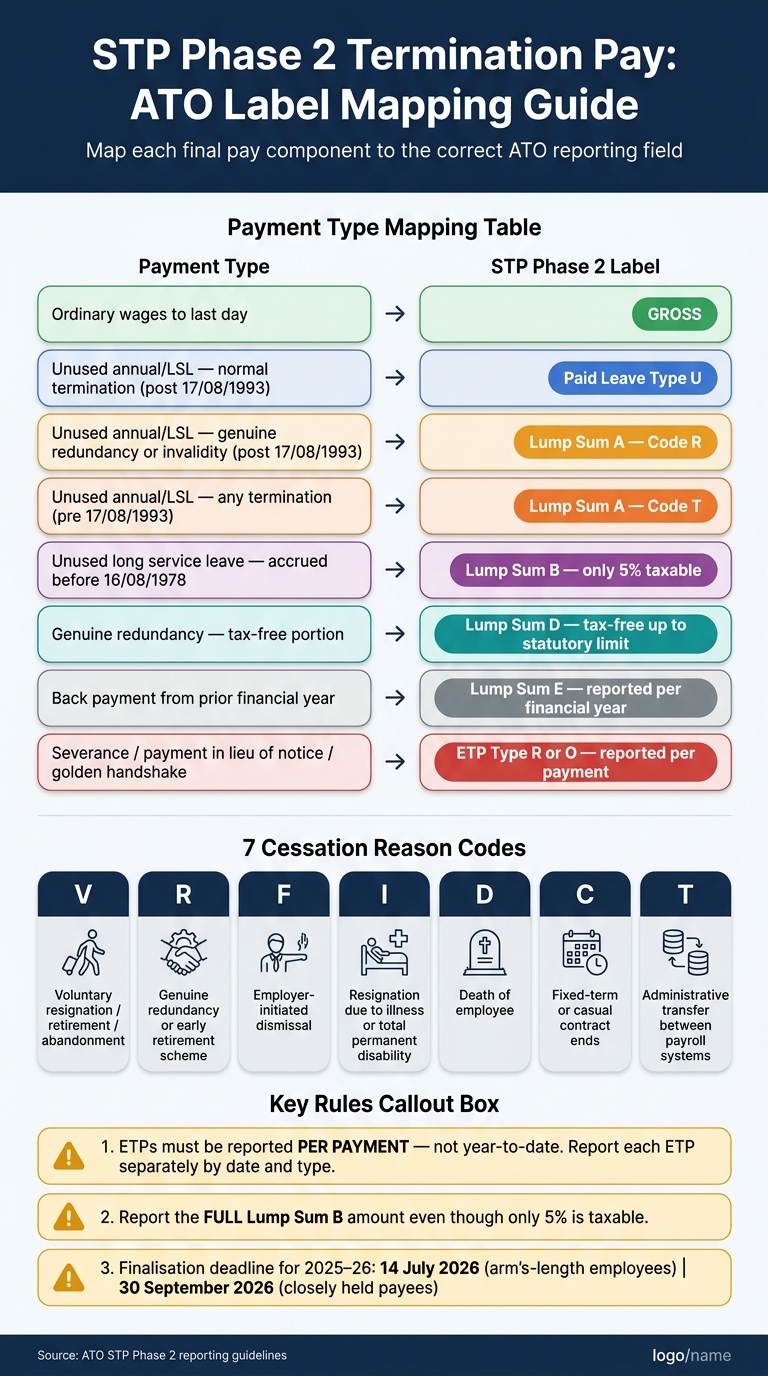
STP Phase 2 Termination Pay: ATO Label Mapping Guide
Under STP Phase 2, start by recording the cessation details. Then map each final pay amount to the right ATO label. For every termination report, you must include the cessation date, a cessation reason code, and the employee's employment basis. Those three fields are mandatory.
These details matter because they affect how the final pay is reported in Xero.
Employee cessation details you must record and report
There are seven cessation reason codes:
| Code | Applies to |
|---|---|
| V | Voluntary resignation, retirement, or abandonment |
| R | Genuine redundancy or early retirement scheme |
| F | Employer-initiated dismissal (misconduct, inefficiency, or inability to perform) |
| I | Resignation due to illness or total permanent disability |
| D | Death of employee |
| C | Fixed-term or seasonal contract ends naturally, or casual no longer required |
| T | Administrative transfer between payroll systems, ABNs, or machinery-of-government changes |
If you pay an ETP after the cessation date, you don't need to change the original cessation date that was already reported.
Which final pay amounts go into which STP labels
Ordinary pay up to the last day goes to Gross. Unused annual leave and long service leave on a voluntary termination go to Paid Leave Type U.
Things change a bit for redundancy and invalidity. In those cases, unused leave is reported as Lump Sum A (Code R). If the leave was accrued before 17/08/1993, it goes to Lump Sum A (Code T) no matter why the employment ended. And if long service leave was accrued before 16/08/1978, report it as Lump Sum B. In most cases, only 5% of that amount is taxable.
The tax-free part of a genuine redundancy payment goes into Lump Sum D, up to the statutory limit based on years of service. Back payments for an earlier financial year go to Lump Sum E and must be reported against that year.
ETPs, such as severance or payment in lieu of notice, are reported per payment, not year-to-date. If two ETPs are paid on the same day, report each one separately instead of combining them. Type R is for redundancy, invalidity, and early retirement. Type O is for other termination payments.
The table below shows the main ATO mapping rules for common final pay items.
| Payment Type | STP Phase 2 Label | Reported As | Tax Treatment |
|---|---|---|---|
| Ordinary hours to last day | Gross | Year-to-date | Standard marginal rates |
| Unused annual/LSL - normal termination (post-17/08/1993) | Paid Leave Type U | Year-to-date | Marginal rates |
| Unused annual/LSL - redundancy or invalidity (post-17/08/1993) | Lump Sum A (Code R) | Year-to-date | Maximum 32% |
| Unused annual/LSL - pre-17/08/1993 | Lump Sum A (Code T) | Year-to-date | Maximum 32% |
| Unused LSL - accrued before 16/08/1978 | Lump Sum B | Year-to-date | Only 5% taxable |
| Genuine redundancy - tax-free portion | Lump Sum D | Year-to-date | Tax-free up to statutory limit |
| Back payment from a prior financial year | Lump Sum E | Per financial year | - |
| Return to work payment | Lump Sum W | Year-to-date | - |
| Severance / payment in lieu of notice | ETP (Type R or O) | Per payment | Subject to ETP caps |
| Golden handshake | ETP (Type O) | Per payment | Subject to ETP caps |
Next, match these ATO labels to your Xero pay items before you lodge the final pay run.
sbb-itb-98a37a2
How Xero maps termination pay under STP Phase 2

Check your STP Phase 2 payroll settings before processing a termination
Before you process a final pay, make sure the ATO labels are already set and matched in Xero. That way, the pay run reports the right way from the start.
In Xero, head to the STP 2 Portal in Payroll settings. There are two areas to check there: employee records and pay items. Both need to be complete for termination pay to report properly under STP Phase 2.
Review the employee's employment basis and tax treatment code. The employment basis should be set as full-time, part-time or casual. These details flow through to ATO and Services Australia reporting.
You also need to enter the employee's cessation date and cessation reason code in their record before you process the final pay. If those details are missing, STP Phase 2 reporting can fail, and Services Australia data sharing can be blocked.
If you set up custom leave categories before Phase 2, Xero's leave transition tool can save a lot of manual work. You'll find it in Payroll settings, and it lets you bulk update leave pay items to the right Phase 2 codes.
Once those payroll settings are sorted, you can map each final pay item to the right Xero field.
Map Xero pay items to ATO reporting fields
Use the ATO code from the previous section to pick the matching Xero pay item. Here’s how those ATO labels show up in Xero.
| Xero Pay Item | STP Phase 2 Field |
|---|---|
| Annual Leave (taken during employment) | Other Paid Leave (Type O) |
| Unused Annual Leave - normal termination | Unused Leave on Termination (Type U) |
| Unused Annual Leave - genuine redundancy | Lump Sum A (Type R) |
| Unused Annual Leave - pre-17 August 1993 | Lump Sum A (Type T) |
| Unused Long Service Leave - 16 August 1978 to 17 August 1993 | Lump Sum A (Type T) |
| Unused Long Service Leave - before 16 August 1978 | Lump Sum B |
| Genuine redundancy - tax-free component | Lump Sum D |
| Payment in lieu of notice / severance | ETP - Type R or O |
How Xero handles year-to-date amounts and per-payment ETP reporting
After moving to Phase 2, check that YTD balances have carried across into Xero's Phase 2 categories. This is one of those small checks that can stop a messy correction later.
ETPs work a bit differently. They are reported per payment, not as a year-to-date amount. So each ETP needs to be reported separately by payment date and ETP type. If you pay more than one ETP on the same day, enter each one as a separate item in Xero.
With the mapping checked, the next step is entering the final pay run in Xero.
Step-by-step: process a final pay in Xero
Prepare the employee record and final entitlements
Before you start a new pay run, check the employee’s legal name, TFN, employment basis, and tax treatment code. When you add the termination details, use the ATO labels covered in the previous section.
Next, confirm the employee’s last day worked. In Xero, enter the cessation date and the matching cessation reason code.
Then review leave balances and accrual dates in the employee record. Match each unused leave amount to the right STP label in Xero, and enter every entitlement under the STP label you matched earlier in this guide.
Once the employee record is tidy and up to date, you can move on to the pay lines.
Create, review and lodge the final pay run
Add each payment type as its own line item. That includes salary and wages for the final period worked, unused leave payouts mapped to the right STP label, any relevant lump sum amounts, and each ETP as a separate entry with the correct type code (R or O) and payment date.
This part matters because small classification errors can snowball later. Check the superannuation treatment for each component. Then reconcile the final pay totals against the payroll ledger before lodging. Also review carried-over year-to-date balances before submission.
With all entitlement lines classified, give the totals one more review before you lodge.
Link the termination pay event to end-of-financial-year finalisation
After lodging the pay event, complete the separate finalisation declaration. You need to lodge the STP finalisation declaration separately so the employee’s income statement shows as tax ready in myGov.
For the 2025–26 financial year, the standard finalisation deadline for arm’s-length employees is 14 July 2026. After you submit the finalisation declaration in Xero, let the employee know their income statement is ready so they can lodge their tax return on time. For closely held payees, the deadline runs through to 30 September 2026.
If you find an error after lodgement - such as the wrong cessation code or a leave type entered under the wrong label - submit an update event within 14 days to replace the incorrect data.
Common errors, corrections and a final checklist
Use this checklist after lodging the final pay to catch the STP errors that most often need correction.
Common STP Phase 2 termination coding mistakes
Small coding errors in termination pay can lead to tax and reporting problems. The table below covers the mistakes that show up most often.
| Error | Common Mistake | Correct Treatment |
|---|---|---|
| Cessation reason | Using "Voluntary" (V) for a redundancy | Use "Redundancy" (R) |
| Unused leave | Reporting unused leave as Paid Leave Type U for a redundancy | Report it as Lump Sum A (Code R) |
| ETP classification | Reporting ETPs as ordinary gross wages | Report each ETP separately by payment date and type code (R or O) |
Report the full Lump Sum B amount even though only 5% is taxable.
How to fix mismatches and when to get support
If the lodged data is wrong, fix the STP event before the error flows into the employee's income statement.
If you catch an error after lodging, submit an Update Event in Xero to replace the incorrect year-to-date figures. If the error breaks YTD continuity, replace the file. If the error is found after EOFY finalisation, lodge a voluntary disclosure through ATO online services.
For more complex termination pay corrections or payroll issues, The Priory Books and Tax can help with payroll and Xero support for small businesses across Australia.
Conclusion: the key steps to report termination pay correctly
Getting termination pay right under STP Phase 2 comes down to a few non-negotiable steps. Record the correct cessation date and reason code. Classify each final pay item under the right STP label. Check that Xero pay items map to the correct ATO reporting fields.
Before you lodge, reconcile the pay event totals. If something is wrong, fix it promptly.
FAQs
What counts as an ETP?
An Employment Termination Payment (ETP) is a lump sum paid when someone’s job comes to an end. It can be either a life benefit payment or a death benefit payment.
Under STP Phase 2, ETPs are reported based on the payment date and payment type. They aren’t reported as year-to-date figures.
Life benefit ETPs may include payments for:
- genuine redundancy
- early retirement
- invalidity
- compensation for unfair dismissal or harassment
Which cessation code should I use?
Use the cessation code that best matches why the employee's job ended, then include that code and the cessation date in your STP Phase 2 pay event.
Here are the codes:
- V: resignation, retirement or abandonment
- I: ill health
- D: deceased
- R: redundancy or approved early retirement
- F: dismissal, misconduct or inability to work
- C: contract cessation
- T: transfer
How do I fix an STP termination error?
Lodge an update event as soon as you spot the mistake, using the correct details. If you find the error after a finalisation declaration, send an update event with the right information.
Can’t fix it straight away? Lodge an update event with the finalisation indicator removed. Then fix the error within 14 days of finding it, or by your next pay cycle. If a cessation date or code is missing, add it in your next submission.