Restaurant Tracking Categories in Xero
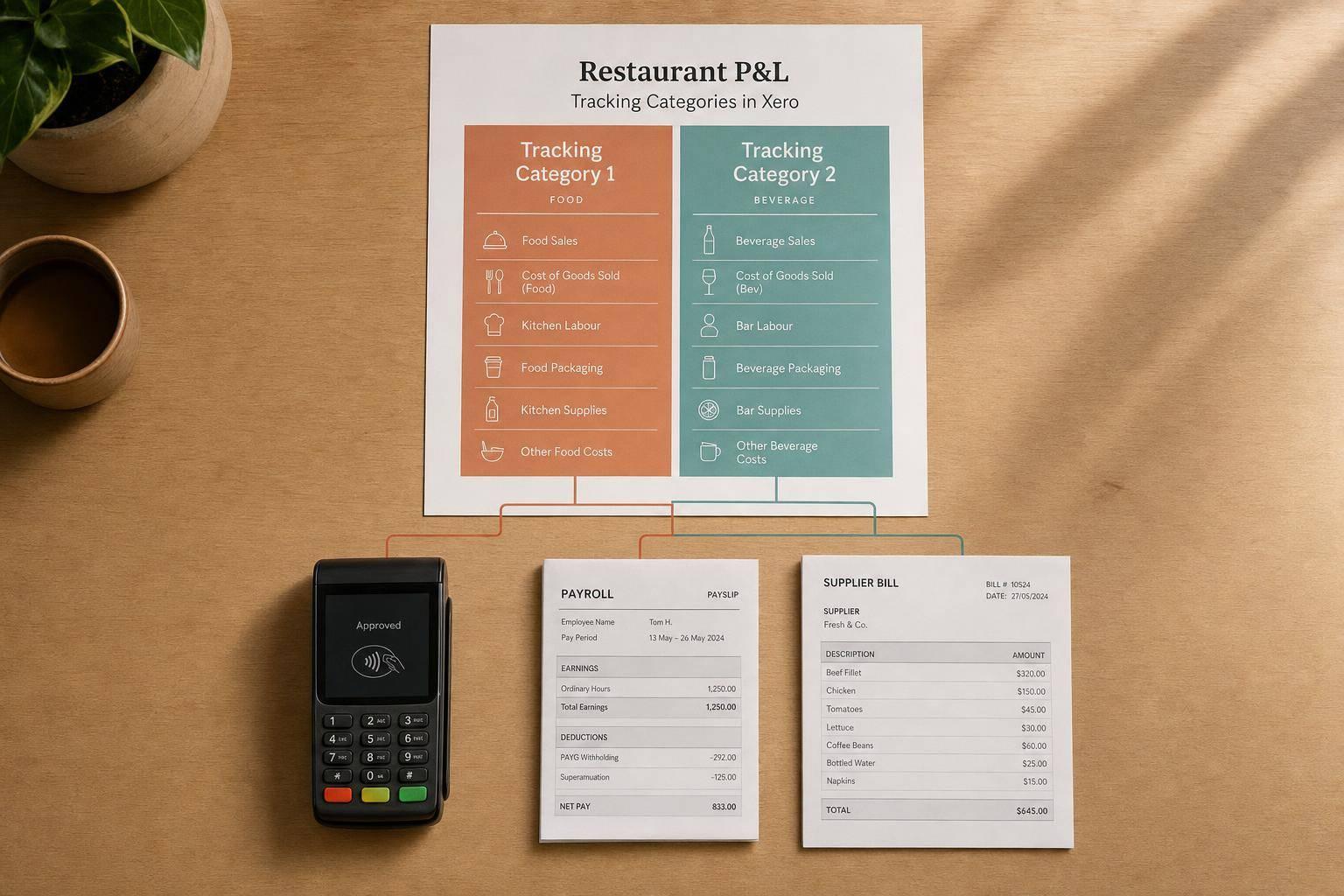
Restaurant Tracking Categories in Xero
If I want cleaner restaurant reports in Xero, I need to keep tracking simple: pick two labels, use them the same way everywhere, and report on sales, wages, and costs together.
Xero only allows 2 active tracking categories. So I’d usually use:
- Site if I run more than one venue
- Service Type for dine-in, takeaway, delivery, or functions
- Department for kitchen, bar, or front of house
- Menu Group for food, coffee, alcohol, or merchandise
That setup helps me answer basic money questions fast:
- Which venue makes more gross profit?
- Is takeaway worth it after wages and cost of goods?
- Is the bar doing better than the kitchen?
- Are coffee or alcohol sales carrying margin?
I’d also make sure my POS mapping, supplier coding, payroll, and GST treatment all use the same labels. If they don’t, the report will be wrong no matter how tidy it looks.
A simple way to think about it: don’t add more accounts if a tracking label will do the job. Use accounts for major revenue and cost lines, then use tracking to compare parts of the business in $ terms and margin %.
| Setup | Best for | What I can compare | Main trade-off |
|---|---|---|---|
| Service Type + Site | Multi-site venues with strong takeaway sales | Dine-in vs takeaway by venue | Less detail on kitchen vs bar |
| Department + Site | Full-service restaurants | Labour and product costs by cost centre and venue | Less detail on product mix |
| Menu Group + Site | Venues focused on product mix | Coffee, food, alcohol, merchandise by venue | Can get crowded fast |
| Department + Menu Group | Single-site venues | Internal cost centres and product groups | No venue comparison |
My rule of thumb: start with the fewest labels possible, keep naming short, and archive old options instead of deleting them. That way, my Profit and Loss by tracking category stays usable month to month, BAS work stays cleaner, and I can spot margin problems before they turn into larger ones.
Xero Tracking Categories: Set Up & Apply Them to Transactions
sbb-itb-98a37a2
Plan your tracking structure before setting it up
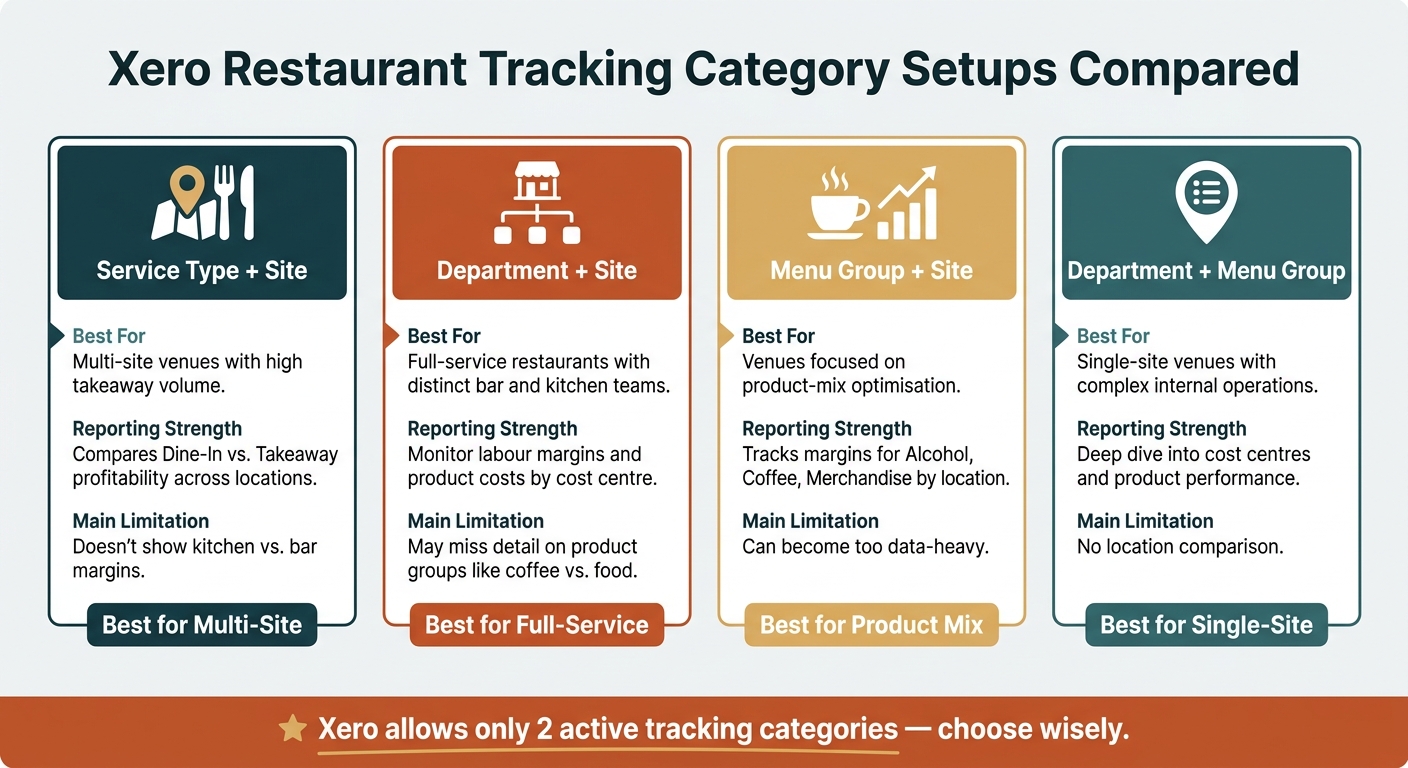
Xero Restaurant Tracking Category Setups Compared
Work out the reporting lines you need for margin checks before you open Xero.
Choose between service type, site, department, or menu group
Pick the category that answers your main margin or performance question.
For operators with more than one venue, Site or Location is usually the best place to start. It lets you compare branch performance side by side.
Your second category is usually for internal operations.
A full-service restaurant with both bar and kitchen teams will often get more from Department. It helps you track labour and product costs by cost centre.
A single-site café that cares most about product mix may get more use from Menu Group. That can split results into Food, Coffee, and Alcohol.
Service Type - such as Dine-In or Takeaway - makes sense when sales shift a lot by channel and you want to see which one leaves more profit.
Menu Group is also handy when you want to look at margins that your chart of accounts doesn’t already split out.
Check your chart of accounts, POS mapping, and GST treatment
Your chart of accounts should separate major revenue streams like food, beverage, catering, and merchandise.
Your POS should send daily sales summaries into Xero with the right tracking labels applied by default.
GST treatment also needs to stay consistent at the POS level, so your BAS and tracking reports line up properly.
Comparison of common tracking setups
| Tracking Setup | Best Use Case | Reporting Strength | Main Limitation |
|---|---|---|---|
| Service Type + Site | Multi-site venues with high takeaway volume | Compares Dine-In vs. Takeaway profitability across locations | Doesn't show kitchen vs. bar margins |
| Department + Site | Full-service restaurants with distinct bar and kitchen teams | Great for monitoring labour margins and product costs by cost centre | May miss detail on product groups like coffee vs. food |
| Menu Group + Site | Venues focused on product-mix optimisation | Tracks margins for categories like Alcohol, Coffee, or Merchandise | Can become too data-heavy |
| Department + Menu Group | Single-site venues with complex internal operations | Deep dive into cost centres and product performance | No location comparison |
If you’re not sure where to begin, start with Site as your first category if you already have, or plan to open, more than one location. Then add the second category only after the first is being used the same way by staff and bookkeepers.
Once the structure is chosen, you can build it in Xero.
How to set up tracking categories in Xero
Once you’ve picked your structure, set up the two tracking categories in Xero and keep the labels simple. Short, clear names make reporting much easier later.
Create the first category for service type or department
Use Service Type for Dine-In, Takeaway, Delivery, and Functions, or Department to compare kitchen and bar results. Keep each option short and spell it the same way every time.
Create the second category for site or menu group
Use Site for multi-venue reporting or Menu Group for single-site product mix reporting. Make sure the names and spelling match between Xero and your POS, so transactions are coded the same way each time.
Once the labels are in place, apply them the same way across sales, costs, and wages.
Add, archive, and update options over time
Archive closed sites or retired menu groups to keep historical data intact.
Apply tracking categories to sales, costs, wages, and reports
Once the categories are set up, the next step is simple: code every transaction the same way, every time.
Tag sales and supplier costs the same way every time
Use the same label spelling across your POS, bills, and bank coding. Then code each transaction to the same category each time, such as Takeaway, Bar, Kitchen, or Food. If you use bank rules and receipt capture for repeat coding, you can cut manual coding errors.
Wages need the same treatment. If you don’t tag them properly, labour costs won’t land in the right department or site.
Allocate wage costs by department or site for labour margin checks
In Xero Payroll, code base wages to one category and split shared shifts with timesheets. This matters because labour is a key variable cost. When you compare wages against revenue by category, it’s much easier to spot overstaffing or weak rostering.
That means labour margin checks sit in the same reports as sales and cost of goods, instead of living in a separate spreadsheet or getting missed altogether.
Use reports to compare category performance
When coding stays consistent, category reports make it clear which parts of the business are holding margin and which ones are slipping. Use Tracking Summary and Profit and Loss reports to compare sales, COGS, gross profit, and margin by category.
If a margin number looks off, start by checking the tagging first.
Conclusion: Keep your tracking setup simple and your reports usable
Once your labels are live, the report is only as good as the coding behind it.
The main idea with Xero tracking categories is simple: choose two categories that help you check margin. For most restaurants and cafés, that usually means one category for service type or department - like dine-in, takeaway, bar, or kitchen - and one for site or menu group. Xero supports only two active tracking categories, so your setup needs to stay tight.
Tracking only works when every system uses the same labels. Your POS mapping, supplier coding, and payroll all need to feed into the exact same category names. When that happens, your Profit and Loss by Tracking Category report shows margin by category in a way that you can actually use. That’s what keeps your P&L by tracking category fit for margin checks.
If your tracking structure needs a clean build or a reset, The Priory Books and Tax can help you set up a simple tracking structure from day one.
FAQs
Which two tracking categories should I choose first?
Start with Revenue Stream and Location.
Revenue Stream - for example, dine-in, takeaway and delivery - lets you track sales by channel. That makes it much easier to see where your money is coming from and where margins are holding up.
Location helps you compare performance across outlets or kitchen sections, so your margin reporting is clearer and bookkeeping takes less back-and-forth.
How do I keep POS, payroll and bills coded consistently?
Map your point-of-sale, payroll and bills to the same Xero tracking categories. That way, your reports show costs the same way across the whole business, whether you’re looking at the bar, kitchen or dine-in.
Use those same categories for payroll expenses and bill coding too. If one part of the business is tagged one way in POS and another way in payroll, your numbers can get messy fast.
The Priory Books and Tax can help set up and reconcile these Xero systems for hospitality businesses, with support for accurate bookkeeping and cleaner margin checks.
What should I do if my tracking reports look wrong?
Check your transaction classifications in Xero to make sure each item sits in the right tracking category, like dine-in or takeaway. It’s a simple step, but it helps keep your reporting clean and your numbers easier to trust.
You should also reconcile your bank accounts and invoices on a regular basis. When you stay on top of this, it’s much easier to spot errors early and keep your records accurate.
If the same problems keep popping up, The Priory Books and Tax can help with Xero setup, system reviews, and catch-up bookkeeping.